· 8 min read
Model Train Control Panel: Trains and Switches
How to drive each train and throw each switch from Traluno's Control windows, why a switch under a train waits, and how hold differs from emergency stop.
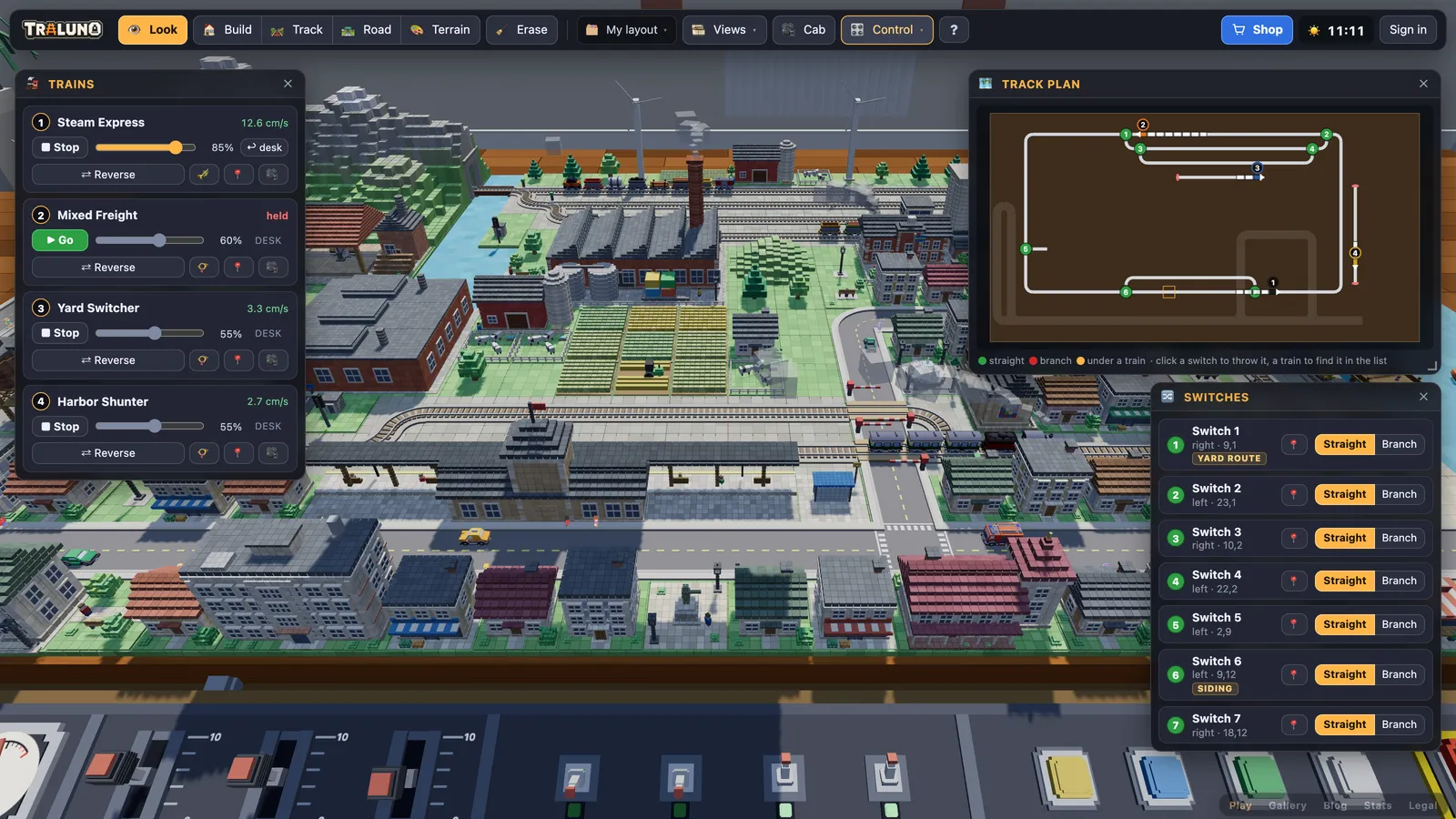
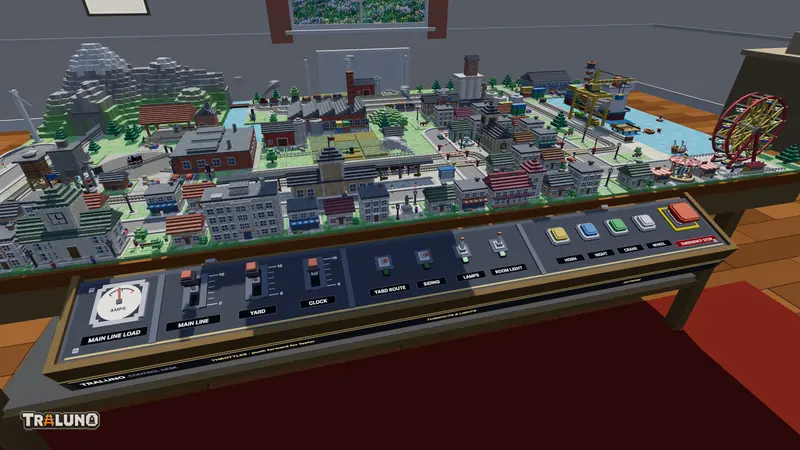
The front of every Traluno table carries a model train control panel: three levers, four toggles and a row of buttons, worked with the mouse. It runs the layout as a whole. One lever sets the speed of every main-line train at once, and two toggles throw two particular turnouts. That suits watching a layout and not operating one, because operating means one train waits while another moves.
The Control menu in the top bar breaks the same controls out per train and per switch, in three windows: Trains, Switches and Track plan. Why the desk is a physical object at all is covered in A Desk, Not a Menu.
What a turnout does
A turnout is where one track becomes two. Americans call it a railroad switch, the British call it a set of points, and model railway catalogues use all three words for the same piece. Two movable blades, the switch rails, steer the wheels either straight on or onto the diverging track.
Direction matters. A train arriving at the single-track end, the toe, takes the turnout facing, and goes wherever the blades are set. A train arriving from either diverging track takes it trailing, and can only come out at the toe. On a real railway, running through trailing points set the wrong way forces the blades apart, and interlocking exists to prevent both that and points moving under a train. Model railway points work the same way at a smaller size, often with a small motor in place of the lever.
Traluno keeps the facing rule and relaxes the trailing one: a train arriving from either leg always runs out through the toe, whichever way the switch is set. The catalogue has a Switch (left) and a Switch (right), and each has a small stand beside the track whose head shows green when it is set straight and red when it is set to the branch.
Opening the Control windows
Press Control in the top bar and tick the windows you want. They float over the layout, drag by their title bars, and open where you last left them. On a phone they are in the menu sheet, under Control.
The Trains window: a throttle for each train
Every train on the layout gets a row: its number, its name, and what it is doing now, which is a speed in centimetres per second, stopped or held. Two trains of the same kind are told apart by a number, so the second freight is Mixed Freight 2.
Under that sits a throttle slider. Until you touch it, a train follows the desk lever for its class: the Yard Switcher and the Harbor Shunter follow the YARD lever, and every other train follows MAIN LINE. While it does, the slider mirrors the lever and a small desk label sits beside it. Drag the slider and the train has a throttle of its own; the label turns into a desk button with a return arrow, and pressing it hands the train back to the lever.
Beside the slider is Stop, which reads Go while the train is held. Below it are Reverse, the horn (a whistle on a steam engine), a button that brings the camera to the train, and one that opens its cab view, which the cab ride guide covers. A held train, and a train on its own throttle, both stay that way when the layout is saved and opened again.
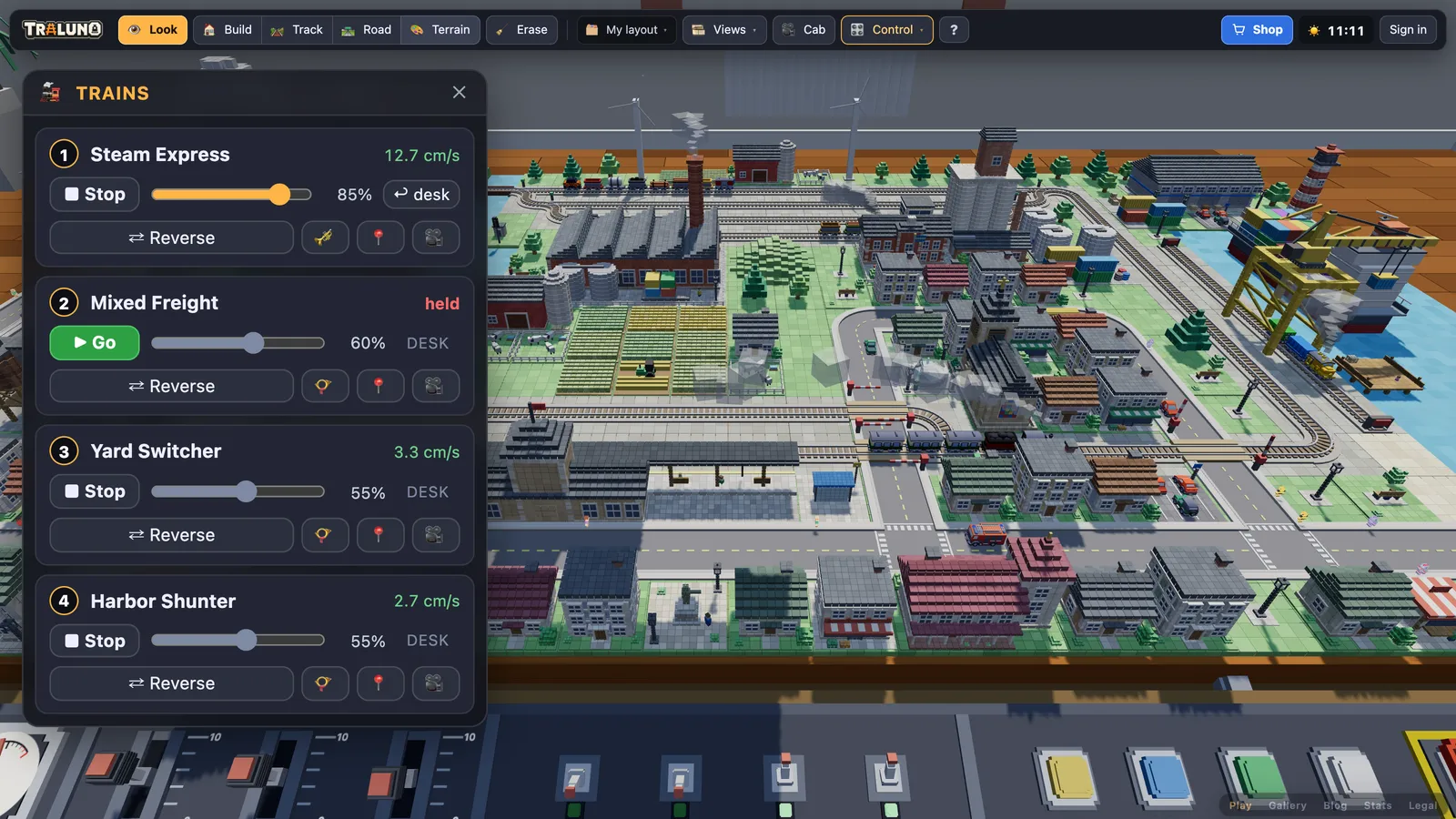
Model railway hands will recognise the split as roughly analogue against digital: a DC controller moves every locomotive on its section together, as the desk levers do by class, while DCC addresses each locomotive on its own, as the slider does.
Hold, and the emergency stop
There are two ways to stop trains, and they are kept apart on purpose.
Stop in the Trains window holds one train. It brakes to a stand where it is and waits until you press Go.
EMERGENCY STOP, the red mushroom at the right-hand end of the desk, cuts power to everything. Every train, the road traffic, the pedestrians and every animated machine, the turntable included, freeze where they are. It latches, as a real one does, and stays down until you press it again. The clock keeps running, and smoke already in the air drifts away.
Hold is the one for operating: keep a goods train in a siding while the express goes past, then let it go. The emergency stop is for when something has gone wrong, or for a picture with the whole table standing still.
Trains also stop of their own accord behind another train, and reverse if the way is still blocked after about eight seconds. Hold is how you choose which one waits, rather than leaving it to them.
The Switches window
Every turnout on the layout is listed and numbered in reading order: back row first, left to right, as seen from the front of the table. Each row gives the switch's number, whether it turns left or right, and the cell it stands on. Straight and Branch set it, and a pin button brings the camera to it.
Two rows may carry a tag, YARD ROUTE or SIDING. Those are the turnouts wired to the toggles of the same names on the desk. On the demo layout they are the yard turnout and the station siding; on a layout of your own they are two of your turnouts, and the tag says which two.
The track plan is a mimic diagram
A model railway control panel often carries a mimic diagram: a schematic of the track on the panel itself, with a lamp at each turnout to show how it is set. Signal boxes use the same idea. The Track plan window is Traluno's version, redrawn every frame.
It shows the layout from above, front edge at the bottom, in the shape of your arrangement of tables, with streets drawn faintly for bearings. On each turnout the leg it is set for is drawn bright and the other dim, so a junction reads as a route rather than a fork. Each switch has a numbered disc, green for straight and red for branch, with the same number as in the Switches window.
Trains are drawn car by car where they actually are, bending round curves as they do on the table. The lead car is in the train's own colour with an arrow at its front, and the train's number sits in a circle above it.
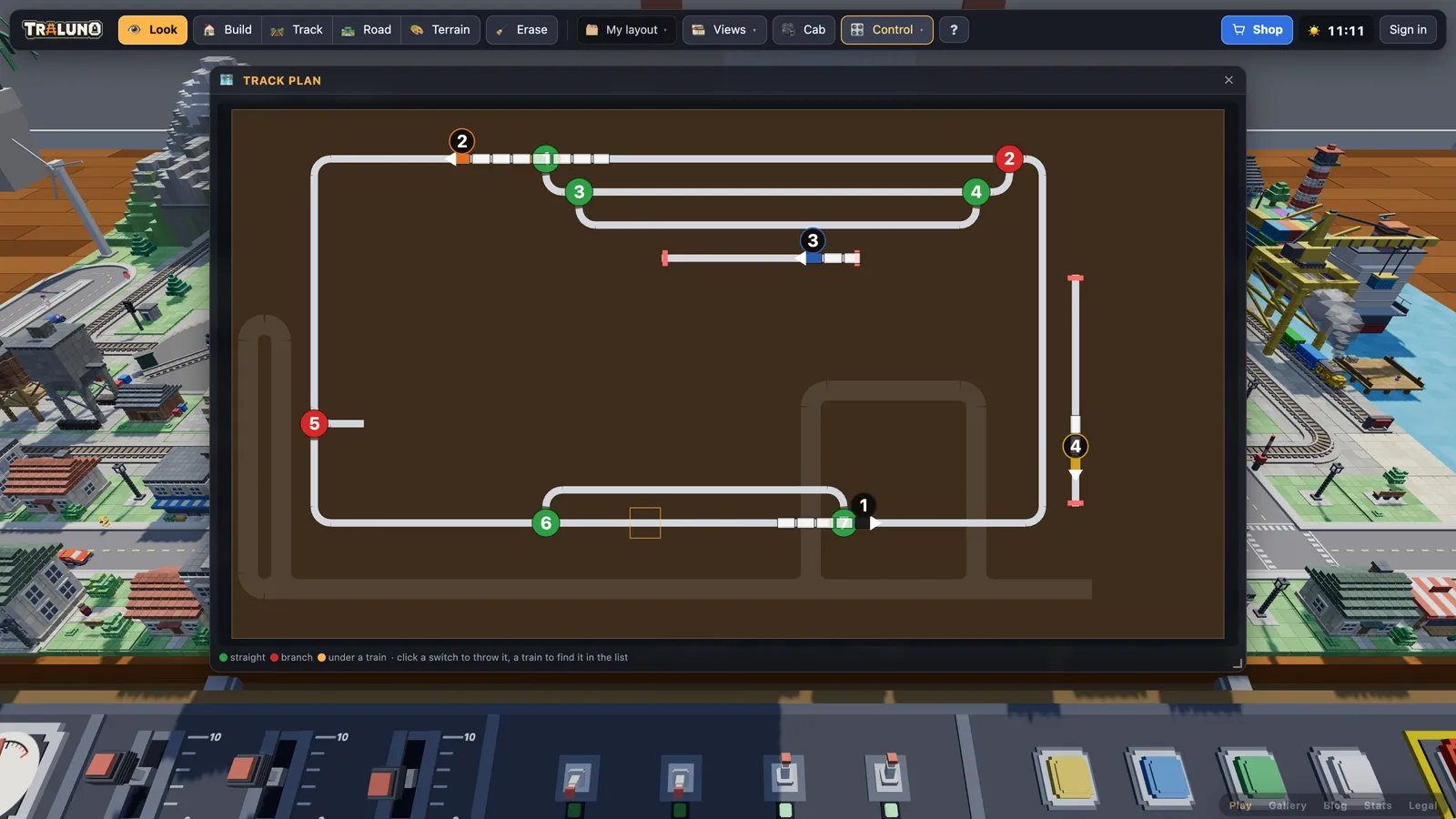
Click a disc and that switch throws. Click a train and the Trains window opens with its row picked out for a moment. The window widens from its corner.
Why a switch under a train waits
Throw a switch while a train is standing on it, or running through it, and nothing moves. The row in the Switches window says so ("changes once Mixed Freight has cleared it"), the disc on the plan gets an amber ring, and the leg the train is really using is drawn in amber. When the last car leaves the turnout, it throws. Until then the window's buttons show what you asked for and the number badge shows what the blades are doing.
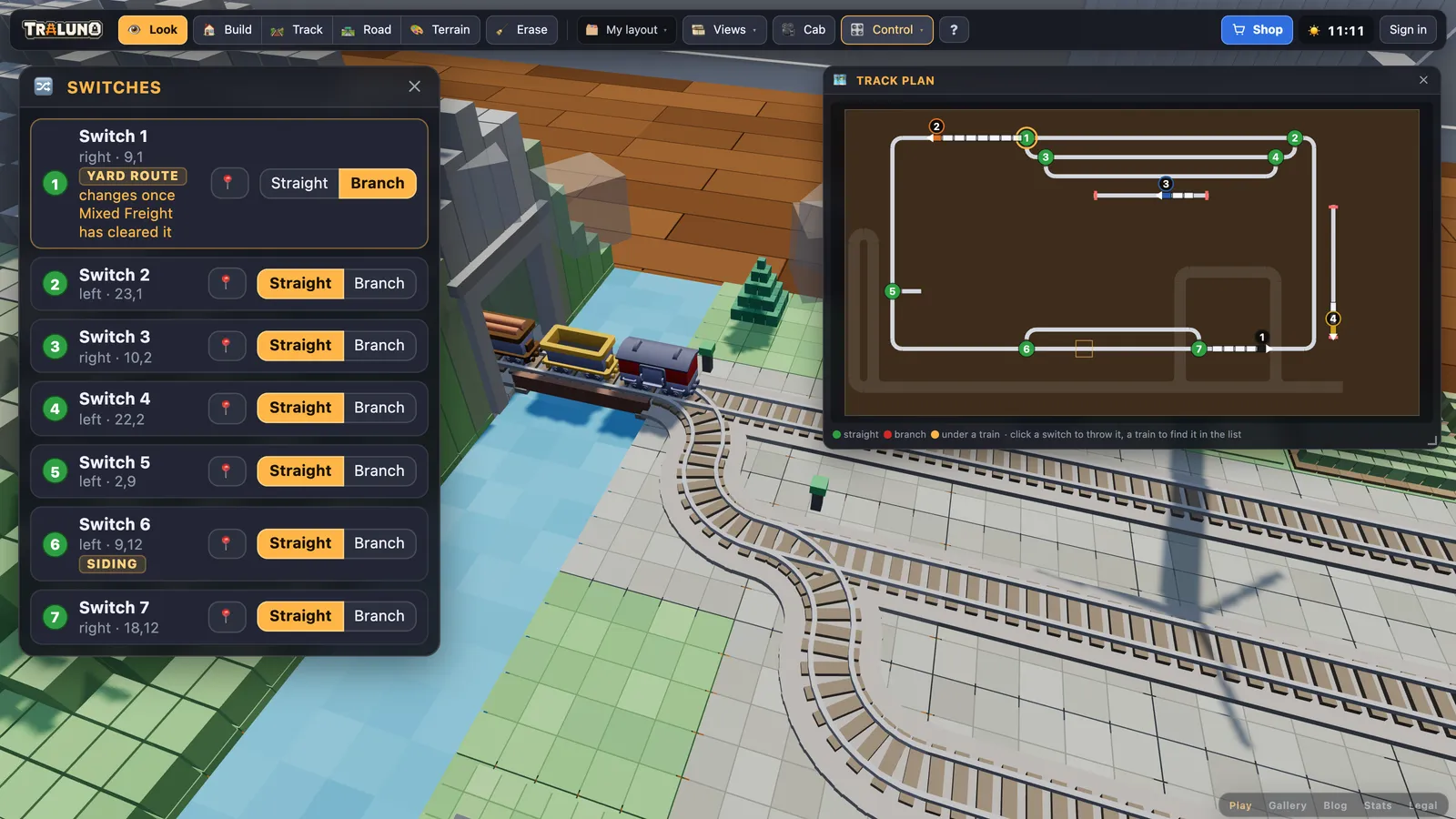
That is interlocking in miniature, and it exists because the alternative was worse. Each wagon follows its own path through the track, and a turnout thrown under a moving train used to send the wagons behind the locomotive down the other leg, splitting the train in two. Now the cars take the way the head went, and the switch will not move until they are all through.
It also makes throwing early safe. Set a switch while the previous train is still crossing it, and it will be set for the next one once the turnout is clear.
The desk and the windows are one control panel
Nothing here is a second copy. Flip the YARD ROUTE toggle on the desk and its switch changes in the window and on the plan; throw that switch from the window or the plan and the toggle's bat moves on the desk. A switch waiting for a train obeys the same rule whichever control asked.
The same functions sit behind the tools an AI agent can use in the browser, so an agent that throws a switch under a train gets the same wait as you do.
A first operating session
With two trains running the same way round an oval, the classic exercise is a passing loop: a second track beside the main line, joined to it by a turnout at each end. Lay Your First Loop explains why it is worth waiting until two trains run reliably before adding one, and for layouts to build one into, see Model Train Track Plans.
Then open the layout with the Track plan and the Trains window side by side. Throw the entry switch to Branch so the slower train takes the loop, and once that train is on the turnout, set it back to Straight: it will wait until the last car is clear. Hold the slow train in the loop and let the faster one run past on the main line. Press Go, and the held train leaves through the far turnout trailing, so it rejoins the main line whichever way that switch is set.
That is the whole hobby in one move: two trains, one line, and a decision about which of them waits.
- guide
- control
- switches
- trains