· 6 min read
Take a Cab Ride on Your Own Layout
Ride the front of any train, a car, a carousel horse or a ferris gondola in Traluno, record the clip, take clean screenshots and save camera views.
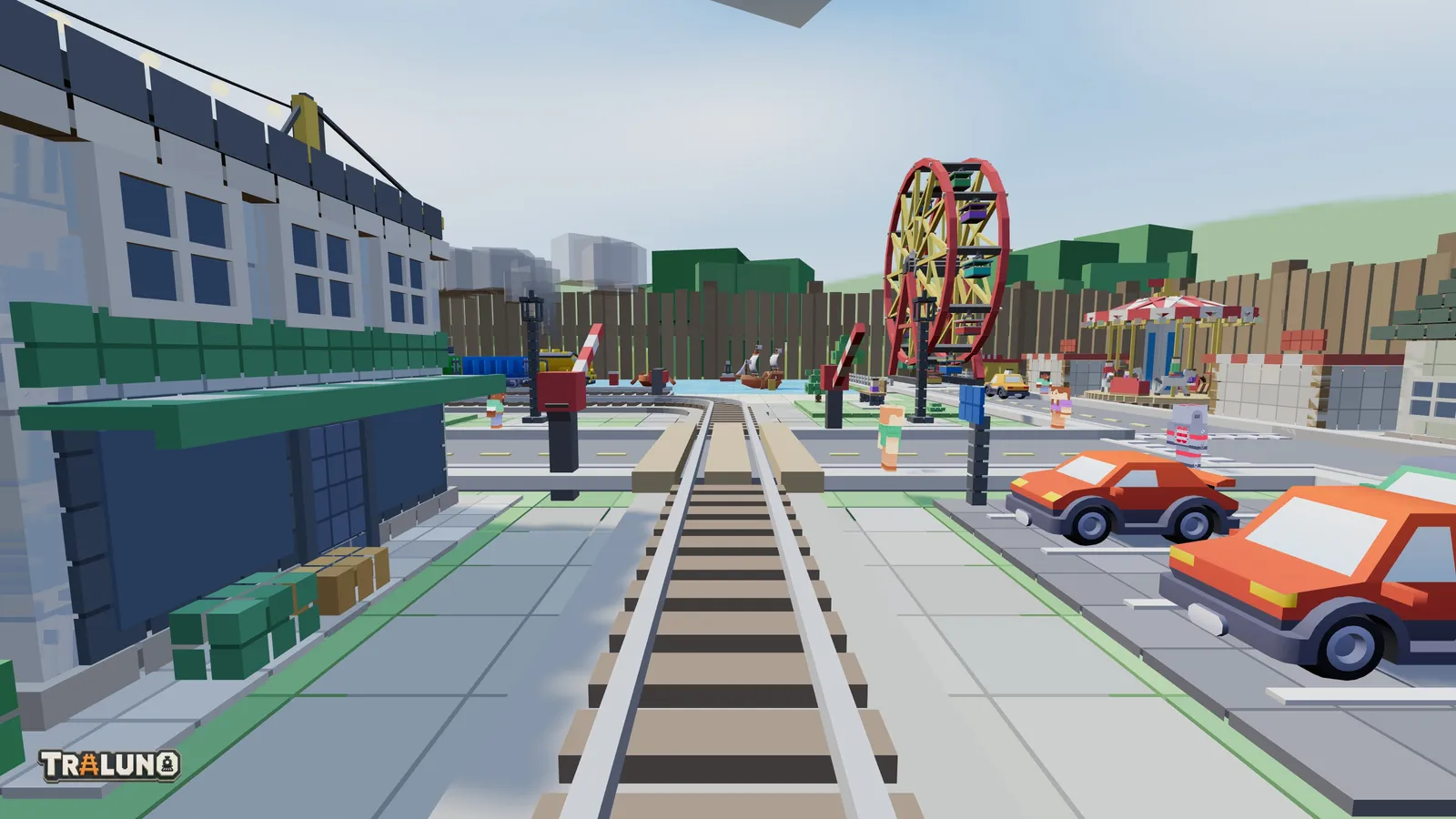
A cab ride is the view from the driver's seat: the track running in under you, the next curve, the next station coming up. On a real model railway it takes a model train camera, a miniature one mounted on a wagon or inside a locomotive. In Traluno it takes one click, and it is not limited to trains.
This is a player's guide to the ride camera, recording, screenshots and saved camera views. How the camera was built, and why it is drawn the way it is, is in Riding in the Cab.
Opening the cab view
There are three ways in.
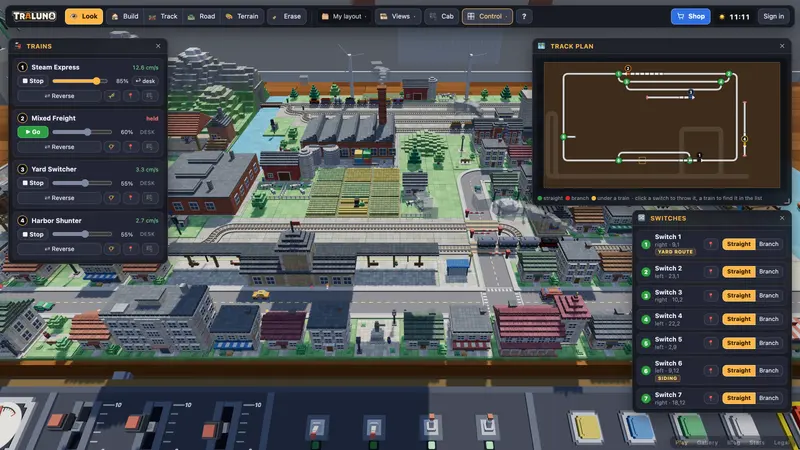
The Cab button in the top bar opens the train cab view of the first train on the layout, and closes it again. With no trains it opens the first thing there is to ride, and with nothing at all it tells you to add a train in Track mode.
Clicking anything with a seat in it, in Look mode, opens that seat's view: a train, a road vehicle, a person, a carousel horse or a ferris wheel gondola.
The Trains window has a ride-along button on every train's row; the Control windows guide covers the rest of that window.
The view opens in a window at the top right of the screen. The arrows in its title bar step through every ride on the layout in turn, the enlarge button makes it big, and the corner handle resizes it. In the bottom corner of the picture is the speed, in centimetres per second and as a scale speed in km/h.
Everything you can ride
The list runs trains first, then road vehicles, then the fairground seats, then pedestrians.
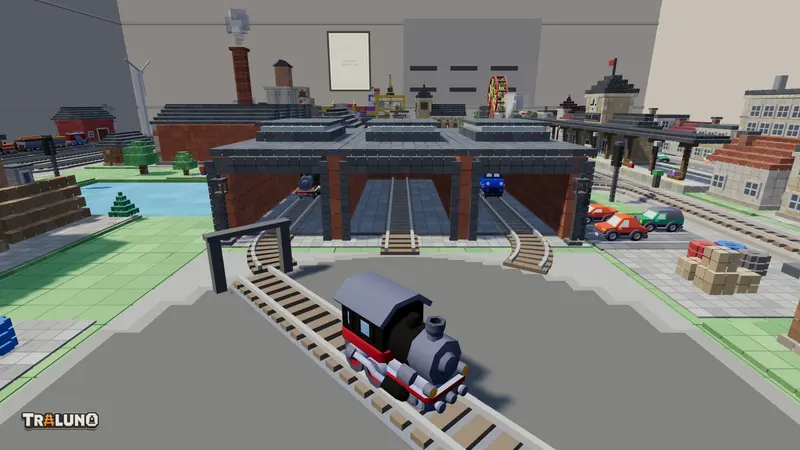
Trains. The camera sits just ahead of the front of the lead car and looks along the track ahead rather than straight forward, so it leans into curves with the train instead of pointing off the rails.
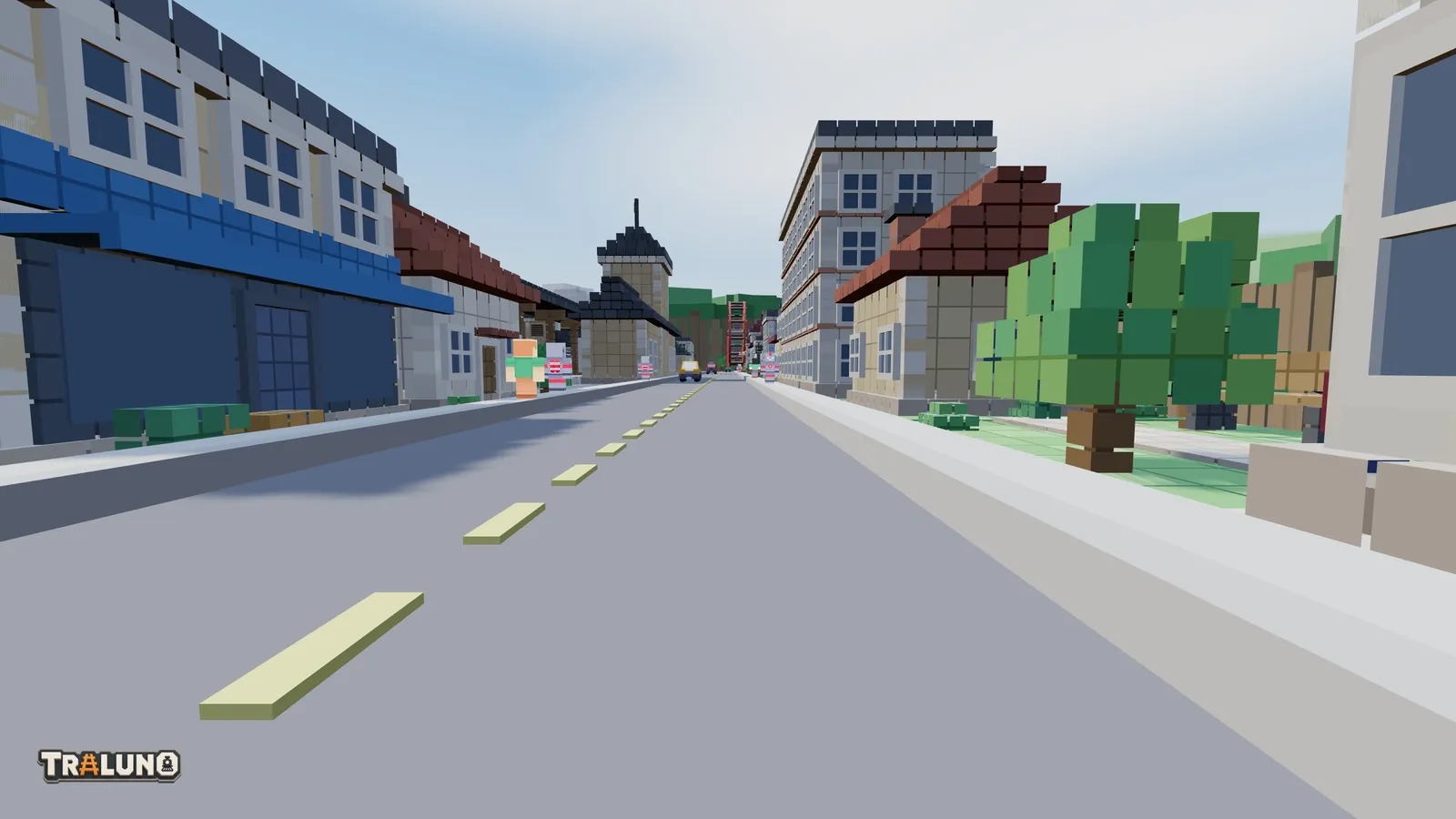
Road vehicles. The seat is at the front of the vehicle at a driver's height, looking down the road. Every one can be ridden, from the free Car, Van and Truck to the Bus, Fire Truck and Police Car in the shop.
Carousel horses. Every horse on the Carousel ($2.99) is a seat. The view rises and falls with the horse and turns with the ride, and it looks outward at the fair rather than in at the centre column.
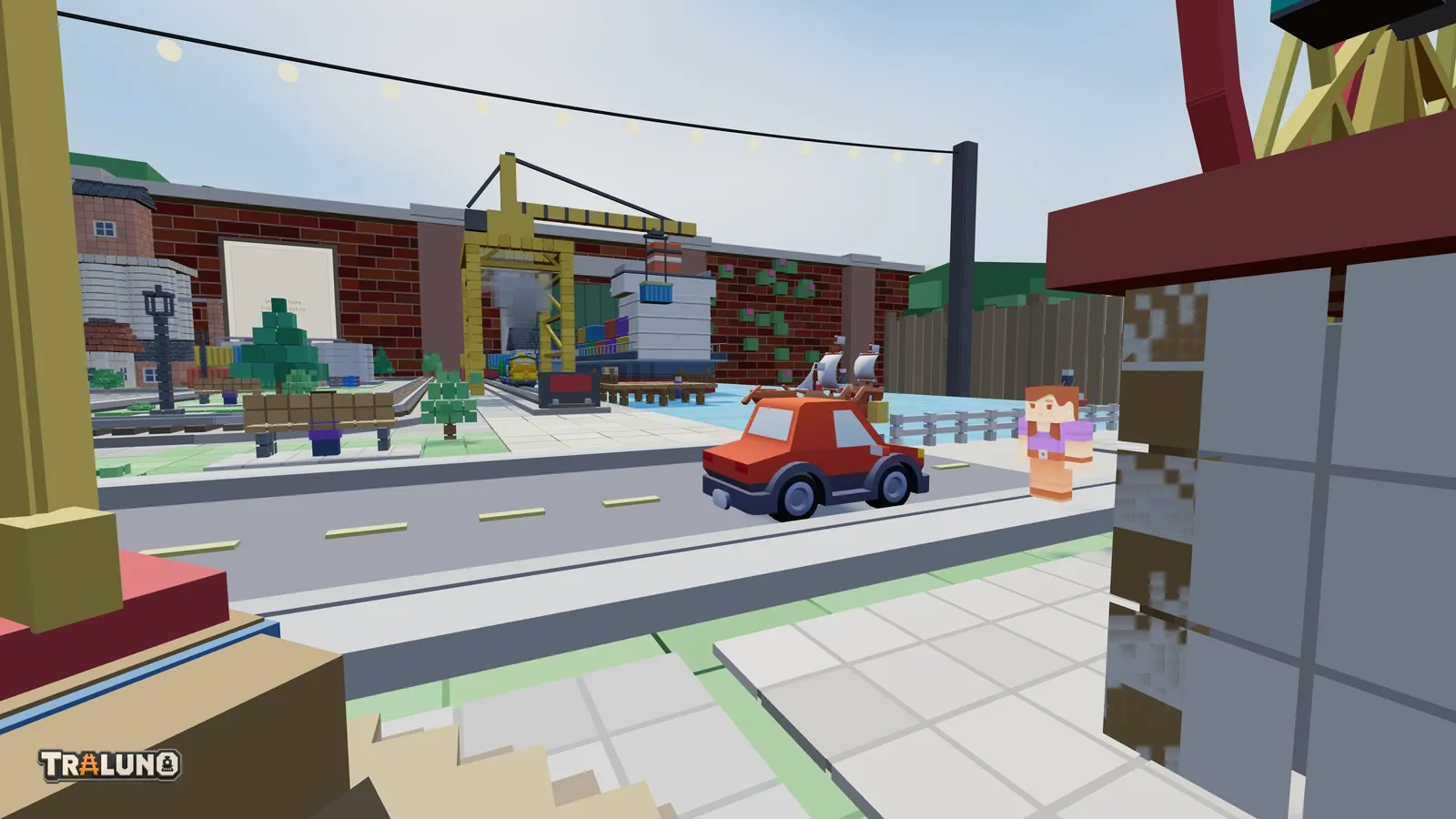
Ferris wheel gondolas. The Ferris Wheel ($4.99) has twelve gondolas, and each one is a seat. A gondola stays level as the wheel turns, and so does the view from it. The WHEEL button on the desk starts and stops both fairground rides, and the camera stays on board either way.
Pedestrians. Everyone walking the footways is listed, as Pedestrian 1, Pedestrian 2 and so on. The camera is at eye height, a little in front of them. When they cross the street, the view turns to face the far kerb, and you cross with them.
Not everything that moves is a seat. The harbour crane and the little engine on the turntable go about their work without passengers.
Recording a cab ride
Recording needs an account, and an account is free. Signed in, the bottom of the cab window has a Record button; press it to start and Stop & save to finish, and the clip downloads as a video file named after the ride and the time. A guest sees Sign up to record in its place. The game asks the server before it starts recording, and the server turns guests away, so it is not only the button that is missing.
Choose the shape first. The menu in the window's title bar sets the framing: Any, 4:5 · feed, 16:9 · wide or 9:16 · story. A fixed shape locks the view to that ratio, and the recording takes its shape from the view. The menu is locked while recording, so pick before you press Record.
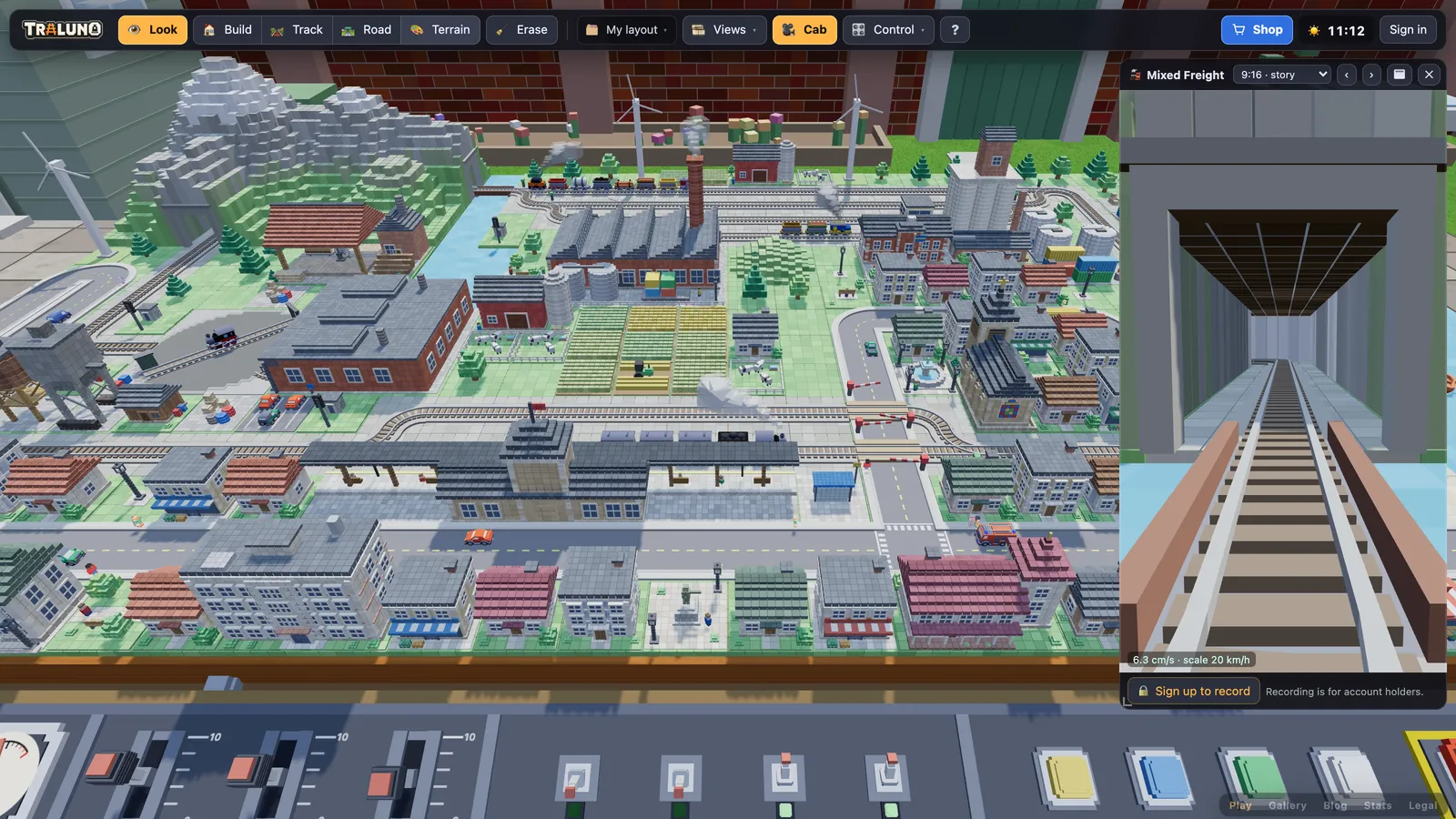
Enlarge before you record. The clip is recorded at the size of the view on screen, at your screen's pixel density, up to 1920 pixels on its long side, at up to 30 frames a second. A small window makes a small video.
Expect MP4, sometimes WebM. The game writes MP4 (H.264) where the browser can, which opens in QuickTime and in video editors, and falls back to WebM where it cannot.
Every clip carries the Traluno wordmark in its bottom-left corner, sized so it stays readable even when the window is small.
Screenshots without the interface
Signed-in players also get Screenshot, in the menu under the layout's name in the top bar. In the read-only view of a published layout it sits on the bar itself. It saves what is on screen as a PNG at the full resolution the game is drawing at, with none of the interface in it: no catalogue, no readout, no hint, and not the cab window either. The same wordmark goes in the corner.
The picture on a gallery card is the same capture, cropped to 16:9. Share your layout in the gallery covers publishing.
Camera views: three built in, the rest saved with the layout
Views in the top bar holds camera positions.
Three are built in. Stand is the view from the front edge of the table at standing height. Desk looks down at the control desk. Over looks down on the whole layout from high above. All three reframe themselves around however many tables the layout stands on, so a view that fits one table does not sit inside a block of four.
Everything else you frame yourself. Move the camera where you want it (drag to orbit, the wheel to zoom, right-drag to pan, W A S D to walk, Q and E to drop and rise), type a name in the box at the bottom of Views and press Save current. A layout keeps up to twelve saved views, with names of up to 40 characters, and saving under a name that is already taken replaces that view. The cross beside a view deletes it.
Saved views live inside the layout itself, so they go wherever it goes: onto your account when you are signed in, and into the gallery when you publish. They are stored relative to the layout rather than the room, so adding or removing a table does not leave them pointing at empty air. Visitors to a published layout can use its saved views but cannot change them, which makes a good set of them the nearest thing to a guided tour.
Getting a better cab ride
Use it to inspect. Anything wrong at rail height, a gap or a curve turned the wrong way, is far easier to see from the cab than from standing height. Lay Your First Loop explains why.
Go through a level crossing. The booms come down as a train approaches and lift once it has passed, and road traffic waits for them. Riding a car up to a closed crossing makes as good a shot as riding the train through it.
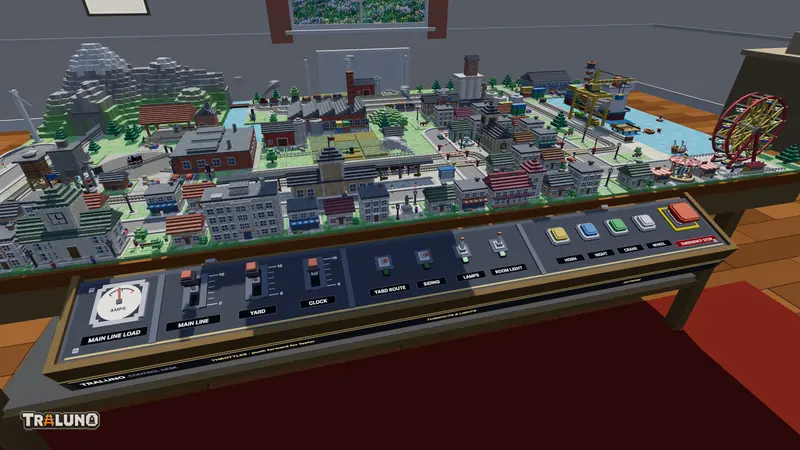
Wait for dusk. The NIGHT button on the desk jumps the clock to evening, or back to morning. Street lamps, lit windows and the trains' own lights look very different from the cab; When the Lights Come On explains how night works.
Give it something to pass. A ride is only as good as what goes by the window. For ideas, see Model Train Scenery Ideas.
Then open the layout, press Cab, and use the arrows to see what there is to ride.
- guide
- camera
- cab ride
- recording