· 6 min read
Share Your Layout in the Gallery
How to publish a Traluno layout to the public gallery, take the picture for its card, see what visitors can do, and make the layout private again.
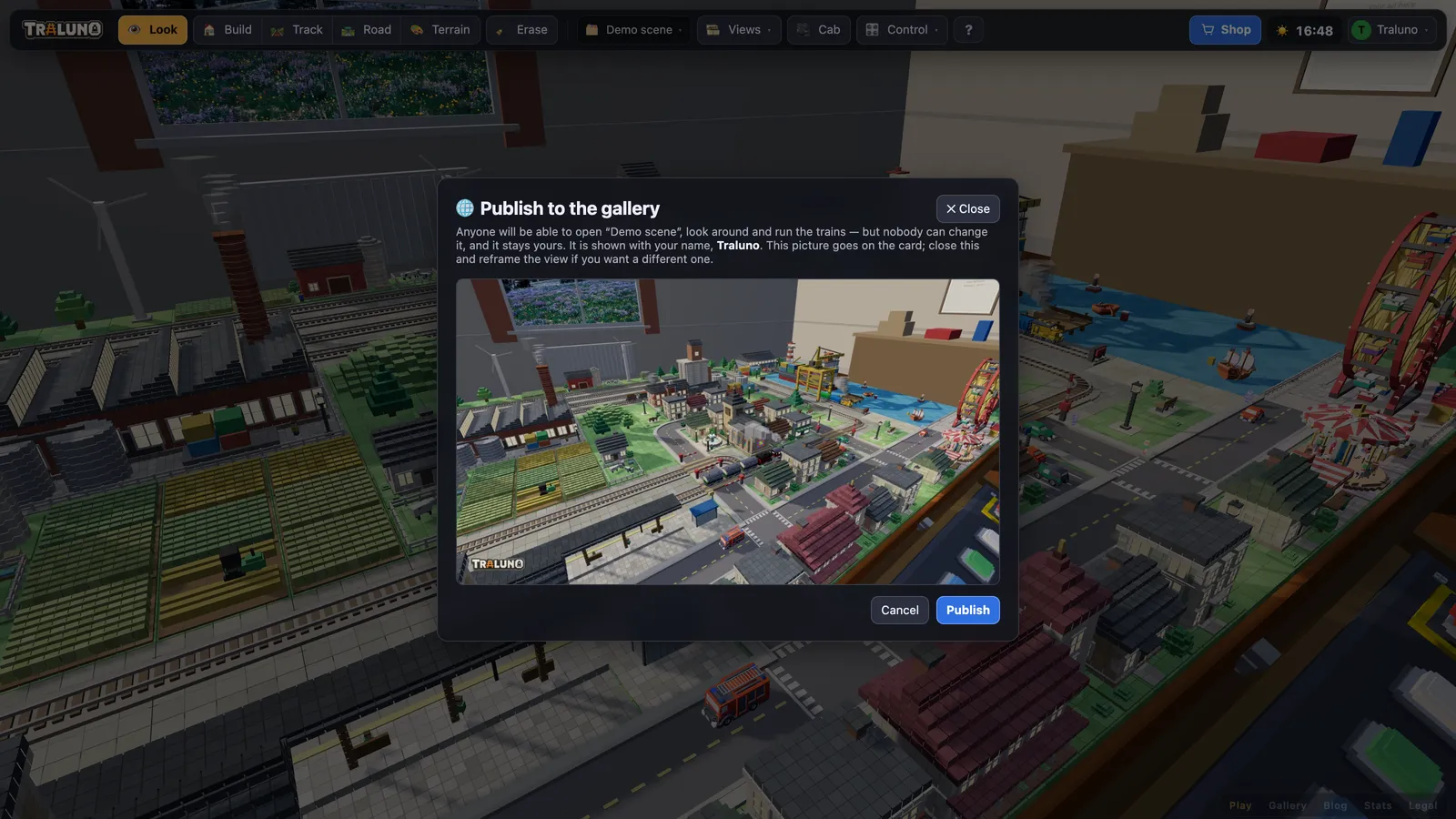
Every layout on an account is private until its owner says otherwise. When you share your layout, it gets a card in the gallery, and anyone who opens the card gets the whole game in a read-only view: the trains run, the desk works, and nothing they do changes anything. If you are new to Traluno, the overview of the free train set game is the place to start; this page assumes you have something built.
What you need before you share
An account. The Share button is in the layout menu for guests too, but pressing it only says "Sign in to publish a layout to the gallery." A guest's layout lives in the browser, so there is nothing on the server to publish, and the card carries the owner's name. Signing in takes an email address and a 6-digit code, with no password.
Two things on the card come from your account, so check them first.
Your display name. A new account's name is made from the part of the email address before the @. If that is your full name and you would rather it were not on a public page, change it under Display name on the profile page.
The layout's name. New layouts are called "My layout", then "Layout 2" and so on. Click the name on the profile page to rename it.
How to share your layout
- Open the layout. Press ▶ Open next to it on the profile page. Without that, the game opens whichever layout you saved most recently.
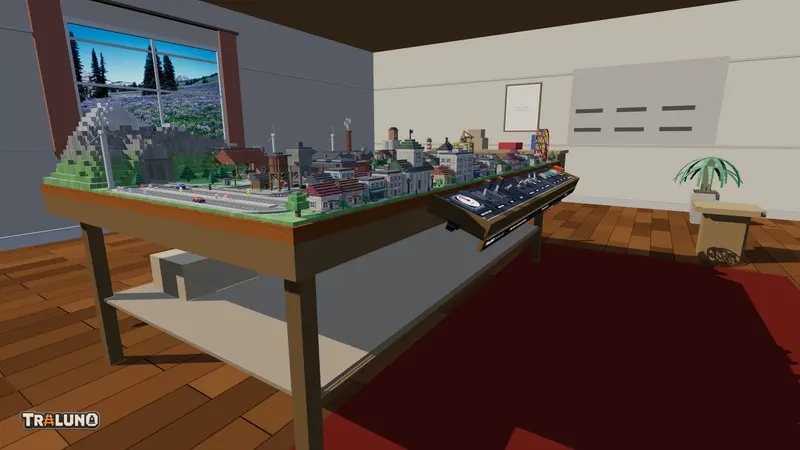
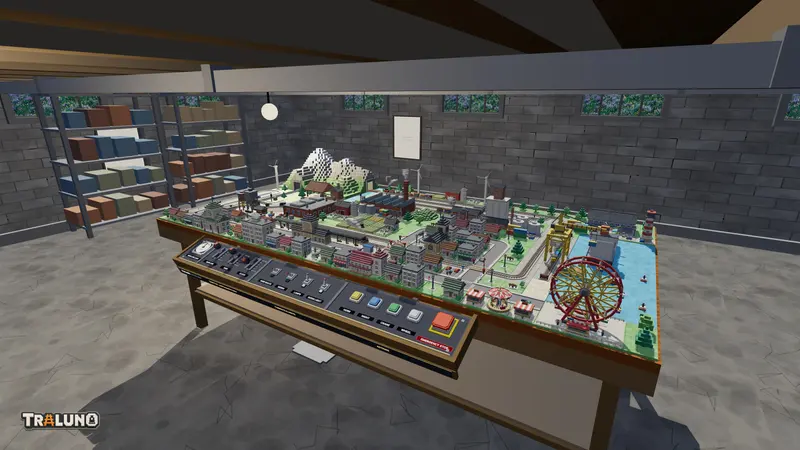
- Frame the picture. The picture is the view on screen at the moment you press Share, so set the camera first. Stand, Desk, Over and any views you saved are under Views. Press NIGHT on the desk if you want the lights on. None of the interface goes into the picture: no bar, no catalogue, no readout and no cab window.
- Press Share. It is in the layout menu, the button in the top bar that carries the layout's name. On a phone it is in the ☰ sheet.
- Check the picture. The dialog, "Publish to the gallery", shows it exactly as the card will. If it is wrong, close the dialog, move the camera and press Share again.
- Press Publish. The game saves the layout first and then sends the picture. A message confirms the layout is in the gallery, and the Share button now reads Public.
How the picture is made
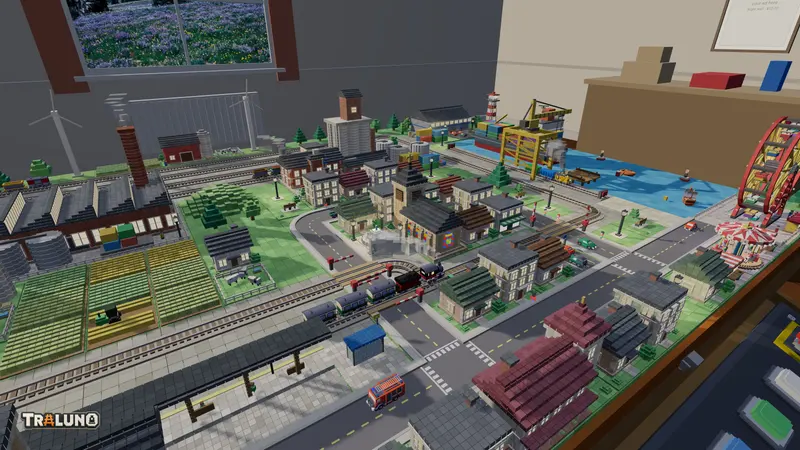
There is no server that renders layouts, so the picture is taken in your own browser. The game copies the frame it has just drawn, crops it to 16:9 from the centre, scales it down to at most 1280 pixels across and sends it as a JPEG.
The centre crop matters most on a phone held upright. A tall screen loses its top and bottom, so the card shows a band across the middle of what you saw; keep the subject in the middle. On a monitor wider than 16:9, the sides go instead.
The same picture is the preview image for the layout's own page, whose title is the layout's name followed by "by" and yours. Paste the link somewhere that shows link previews and that is what appears.
What visitors see
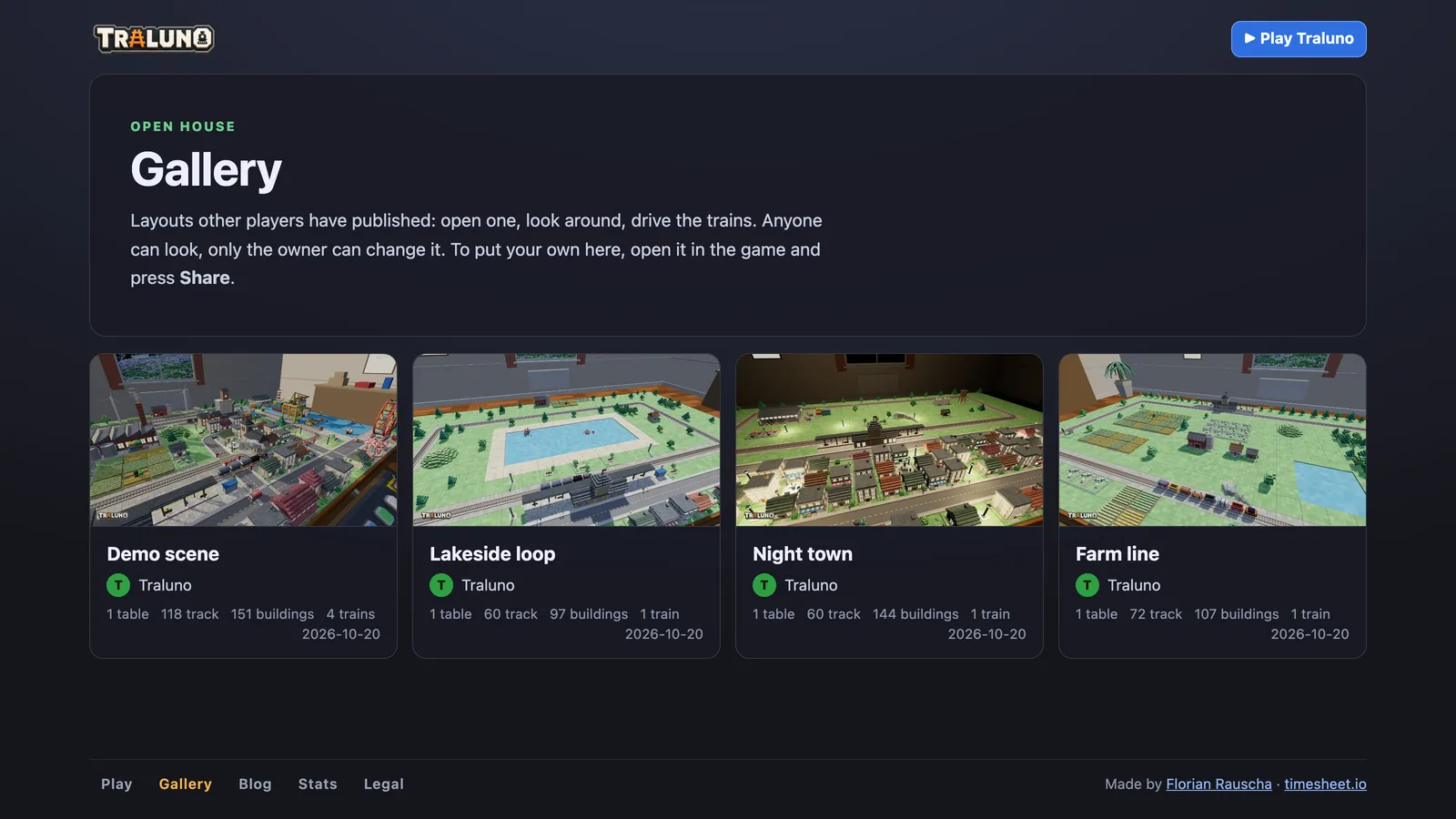
The gallery lists published layouts with the newest picture first. Each card has the picture, the layout's name, your name, and a line of counts: tables, track, buildings and trains, plus the date the picture was taken.
Opening a card opens the game itself in view mode, standing in your room rather than the visitor's. Everything runs: trains, traffic, people and the clock. A visitor can drive the trains from the desk, flip the switches, press NIGHT, open the Control windows, go to the views you saved with the layout, and ride in the cab. None of that needs an account.
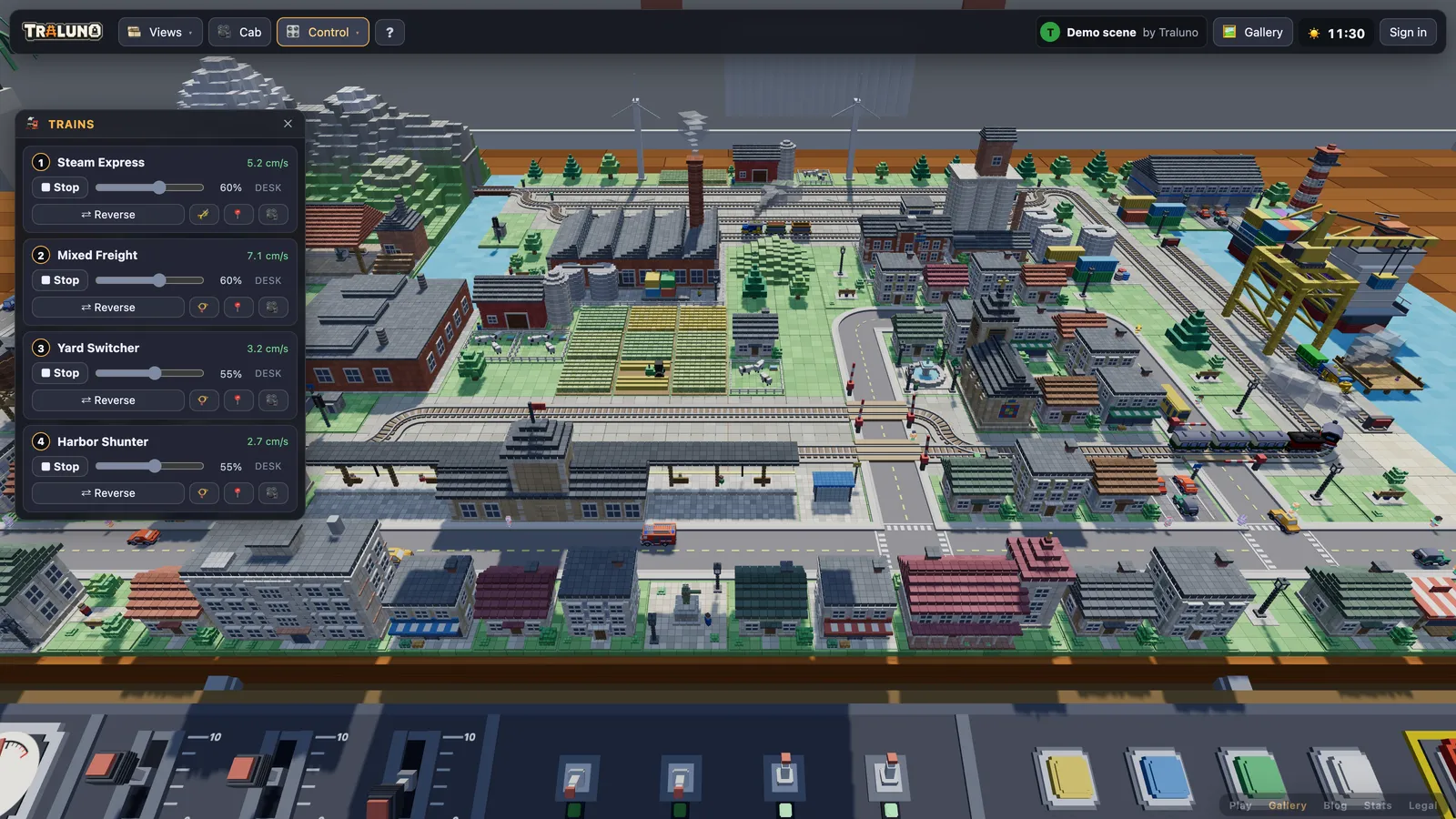
What they cannot do is change anything. The editing modes are not on the bar, and the engine refuses them even when asked from the browser console. Nothing a visitor does is saved, and their own layout in their own browser is left alone. A layout on four tables opens on four tables even for a visitor who owns one; from one table to four explains how tables work.
The server checks this again on its side. A request to change a layout has to come from the owner's account, so an attempt from anyone else is refused.
The Edit button is yours alone. Open your own published layout and the bar carries Edit, which takes you to it in the editor. Everyone else sees only Gallery, which goes back to the list.
It stays live after you publish
Publishing does not freeze a copy. The gallery reads the same saved layout the game autosaves to, so when you carry on building, visitors open the latest saved version and the counts on the card follow it. The picture is the one thing that does not change by itself.
To replace it, frame a new view and press the button again; it reads Public now. The dialog is called "In the gallery" this time, and Update picture sends the new one. Because the list is ordered by when each picture was taken, a new picture moves the card back to the front. The same dialog has Copy link and Open ↗.
Making it private again
From the game: press Public, then Make private. The message reads "Taken out of the gallery. It is private again."
From the profile page: every layout shows Public or Private beside it. A public one has View in the gallery and Make private. A private one that has been published before has Make public again, which puts it back with the picture it had. One that has never been published tells you to open it and press Share.
A private layout keeps its picture on your account, which is what lets it go back without a new one. Its card leaves the gallery, and the link to it stops working: the page answers as if the layout had never existed. Deleting a layout takes it out of the gallery as well.
Browsing the gallery for model train layout ideas
The gallery is also the quickest way to see what other people have built from the same catalogue you have, which makes it a good source of model train layout ideas. What is in it depends on who has published lately, so here is what to look for rather than a list.
Start from the counts. The line under each card tells you whether a layout stands on one table or four and how much track it has, so you can find the ones that match the space you have.
Open the Track plan. In Control, the Track plan window draws the layout from above, with every switch numbered and every train where it is right now. From standing height it is hard to see how a yard is wired; from above it is obvious. Control trains and switches explains the window.
Ride round it. A cab ride shows whether the scenery holds up at rail level, and the arrows in the cab window step through every other ride on the layout.
Wait for dark. Press NIGHT. A town that looks plain by day can be the best thing on the table once its windows are lit.
There is no button that copies someone else's layout into your account. If you like a plan, build your own version of it by hand; model train track plans and model train scenery ideas have starting points. When it is ready, open your layout and press Share.
- guide
- gallery
- sharing
- layouts